1. Publish and test the result
- First download Project → Save Project so you can edit later.
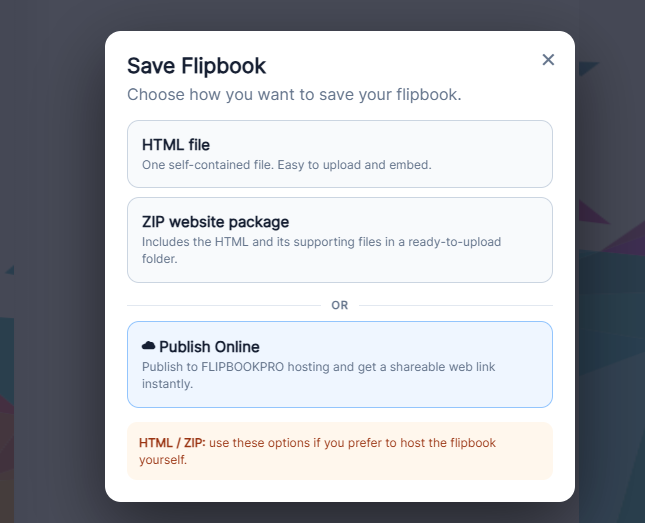
- Choose Save Flipbook → Publish Online and wait for the upload.
- Use Copy URL or Open Flipbook in the result dialog. Check the cover, final page and actions before sharing.
- With more than 20 pages the FREE workflow shows a limit; check the actual included pages.
2. Retain your account reference
- Click Online Flipbooks under Project settings. Use Copy next to Your Account ID and keep it private.
- To reconnect an existing account use Use existing Account ID, enter it and click Use ID.
- The used/limit counter counts publications, not disk space. The screenshot hides account details.

3. Change a price but retain the link
- Use Project → Open Project and load the .pdfinflip corresponding to that publication. Open in the online list is only the viewer.
- Double-click an added price Text element, change it and Apply changes. If the price is baked into a PDF page, edit your source and prepare the replacement edition.
- Save a new project copy and check Full preview.
- Open Online Flipbooks, identify the matching publication and click Update in its card.
- Reopen the previously shared URL and check the new content. Update preserves publication ID and URL.
Check before Update: it publishes the content currently open in the editor. If brochure B is open and you click Update on publication A, B replaces A. It does not retrieve the previous online project.
4. Delete only when required
- Use Open on the card to verify which hosted edition you are managing.
- Delete asks for confirmation and removes that hosted publication. Editor Undo cannot restore it.
- For a new edition use Update. If the publication limit is full, remove an unnecessary publication or choose a suitable plan. A separately saved local project is independent.